
WordPress Dashboard
A brief overview of the WordPress Dashboard.
Written Guide
When you log into your website at www.websitedomain.com/wp-admin you’ll be directed to your dashboard.
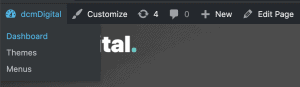
If you’re on the frontend of your site, you’ll be able to get back to your dashboard by clicking your site name in the top left of the top bar >> dashboard as long as you are logged in.
The Dashboard screen, also considered the home page of the admin system, looks something like this:
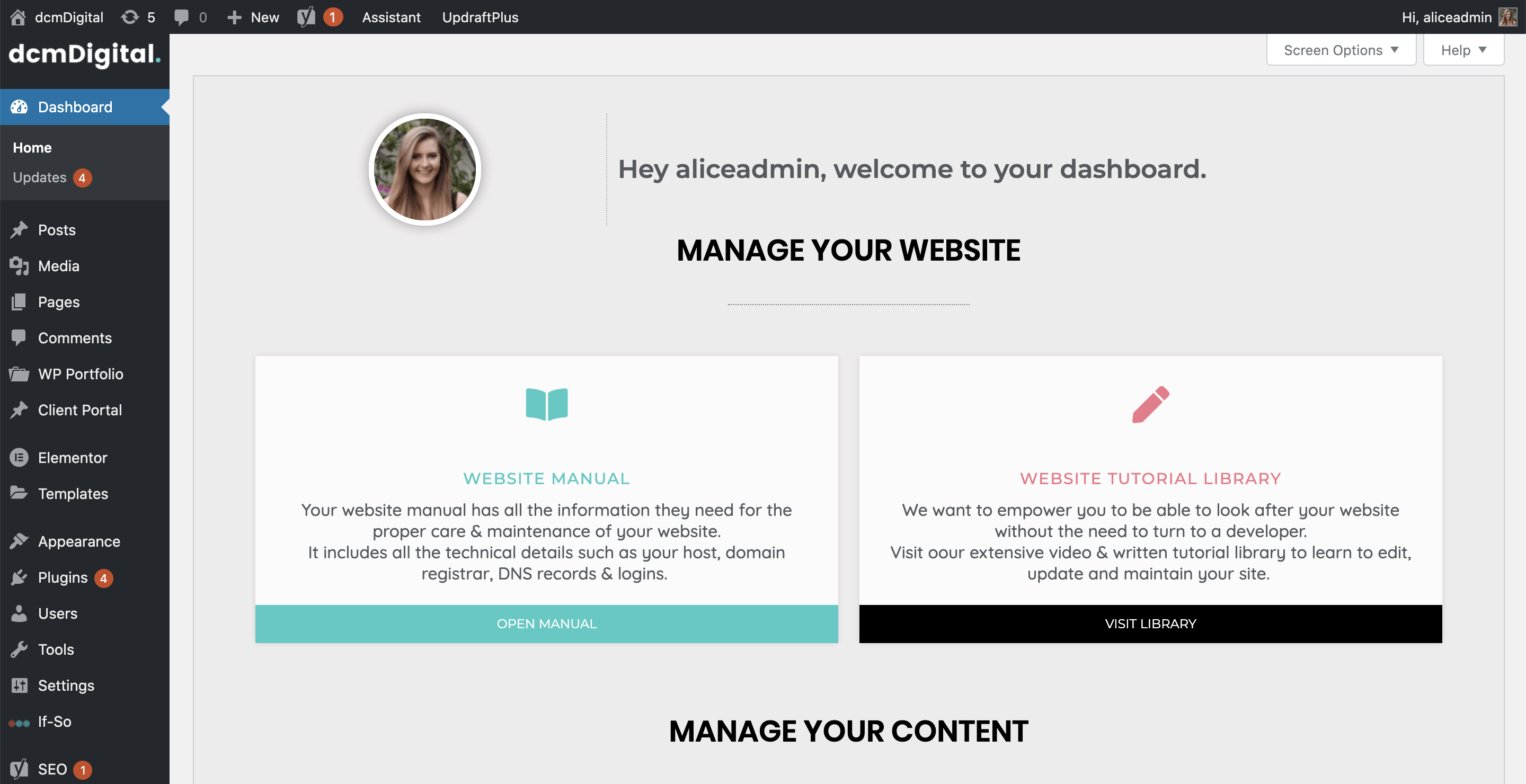
When you’re logged into your dashboard you’ll see a sidebar at the left on the backend, and a top bar on both the front and backend of your site. These bars will show up no matter what page you are on, and will allow you to easily navigate around your site.
We’ve customised your dashboard to ensure you have access to all the important bits at your fingertips! We’ve also put together a series of videos, which you will find throughout this tutorial library that will help you with each aspect of your website.
First you’ll see the link to your website manual. Your website manual provides you as all of the important technical information related to your website. If you’re not on one of our care plans, it’s really important you read this manual and assign someone to be responsible for the maintenance of your site. If you’re on a care plan, that someone is us!

Next is the link to our website tutorial library. If you ever need to update your website, the tutorial library will be your go to place. It’s full of videos and written tutorials to ensure you’re able to properly look after your site.

Below that you’ll see your easy access links to edit all of the different content areas of your site. If you get stuck whilst editing any of the content, be sure to look through the rest of the tutorials.

Finally you’ll find information on our care plans, and a support form so that you can get in touch with us directly from your dashboard!


